feature ·
Work on Hinode as a team
Invite people to your organization and choose which workspaces each one can use.

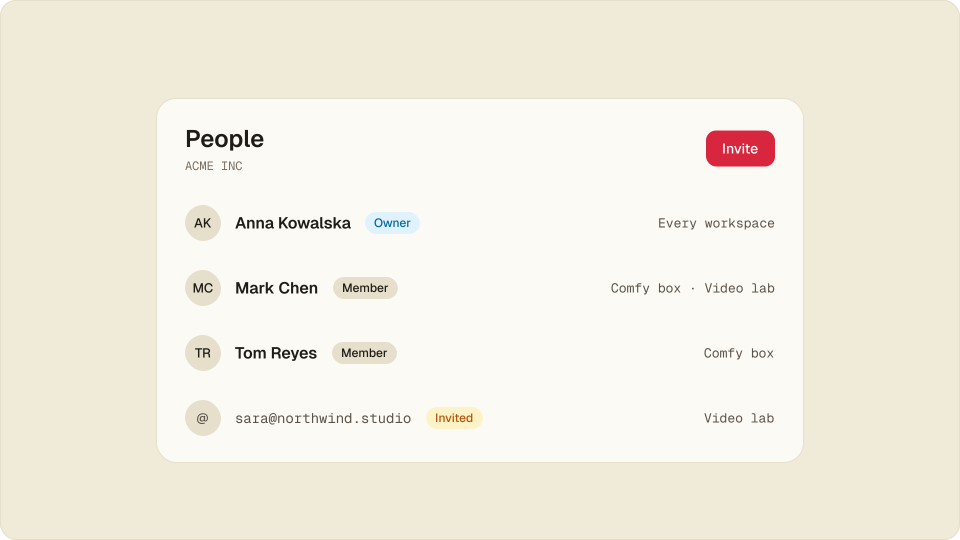
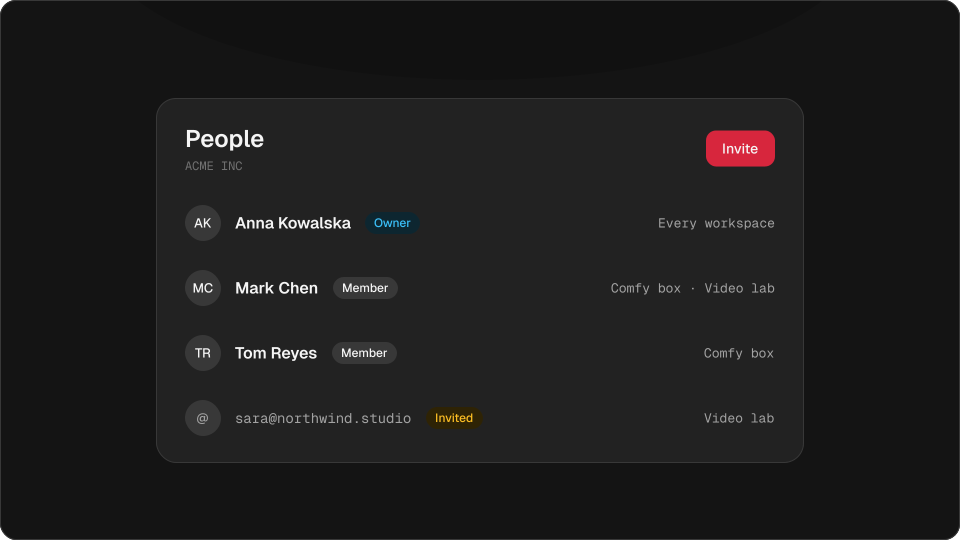
Hinode accounts hold organizations now. Invite the people you work with, choose which workspaces each of them can use, and pay for all of it with one card.
Until now an account was one person. To let a colleague render on your setup, you shared your login. Work for a client went on the same invoice as your own.
An organization has people, workspaces and a card. You already have one: it carries your name, and everything you had is in it.
Try it
Give Mark a workspace, then take one away
People in Acme Inc
Anna KowalskaOwner
Every workspace
Mark ChenMember
What Mark sees
Acme Inc
- Comfy box
Video lab and Client reel are not in his app.
Tick a workspace and it appears in Mark’s app. Untick it and his SSH keys come off its machines at once.
Invite people by email
Open People, press Invite and type an address. Pick a role, and for a member tick the workspaces they can use. The email carries a link that works for seven days, and only for the address you sent it to.
The same works without the app. Ask your assistant to invite anna@acme.com as a member with Comfy box, or run one command:
hinode org invite anna@acme.com --workspace "Comfy box"Owners and members
- Owner: sees every workspace, creates and deletes them, sees the card and the invoices, invites and removes people.
- Member: works in the workspaces an owner gave them. Starts and pauses machines, runs jobs, opens files, connects over SSH. Sees no card and no invoice.
The organization pays for a machine, whoever starts it.
A workspace is shared whole
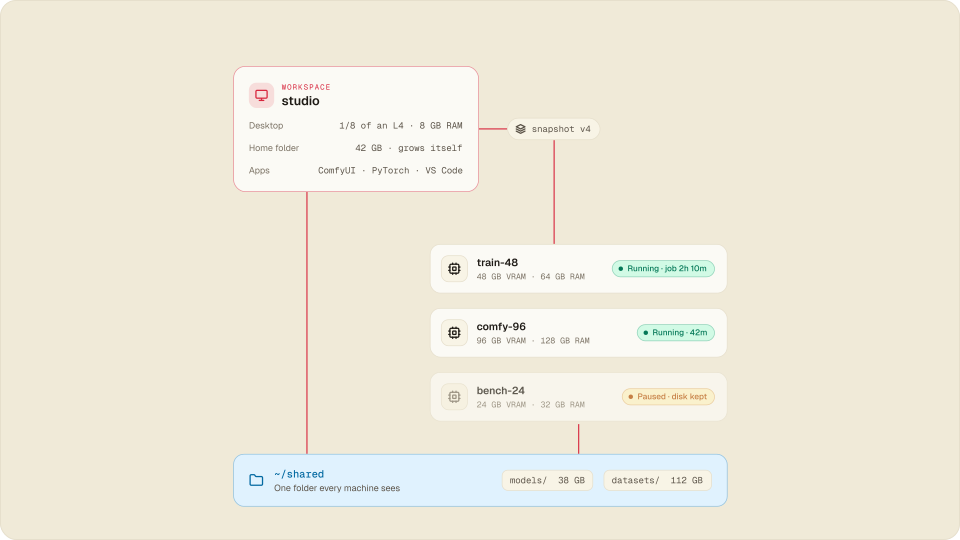
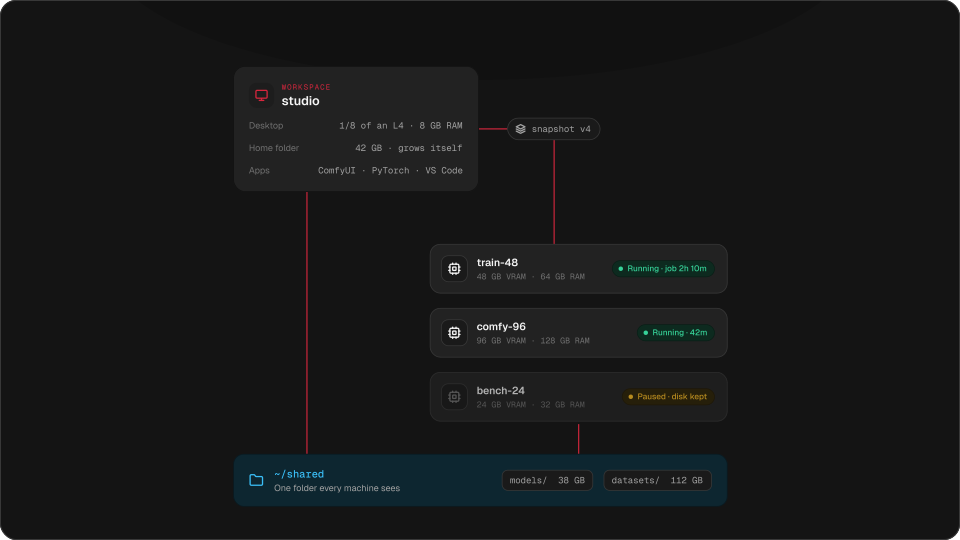
Everyone who can use a workspace gets all of it: the same home folder, the same shared folder, the same machines. One person can read what another left there. To keep two people apart, or a client’s footage away from a freelancer, give them different workspaces.
One card and one invoice per organization
Each organization pays with its own card and gets its own invoice once a month. If you work for two clients, make an organization for each. Each invoice lists only that client’s machines and storage, and the card on it can be the client’s own.
A new organization costs nothing until it has a workspace. A workspace stays in the organization it was created in.
When someone leaves
Remove a person, and the organization’s workspaces leave their app and their SSH keys come off its machines at once. What they started keeps running, because it is the organization’s work. Files they already copied to their own computer stay with them.
To hand over the whole organization, press Transfer and pick someone in it. They become the owner at once, and you stay as a member. The card stays too, until the new owner replaces it.
Questions
Can several people use the same cloud GPU workspace?
Yes. Invite them to your organization and tick the workspace. Each person signs in with their own account and their own SSH key.
Can I bill each client separately?
Yes. Make an organization for each client. Each has its own card and its own monthly invoice.
Does a member see the card or the invoices?
No. Only owners see the card, the invoices and the credit.
What does an organization or an extra person cost?
Nothing. You pay for the machines and the storage in its workspaces.
How do I keep a freelancer away from other projects?
Invite them as a member and tick only the workspace they work in. They do not see the others.