Docs / Doing the workAll pages
06 · Doing the work
What is on the machine, and how to add to it
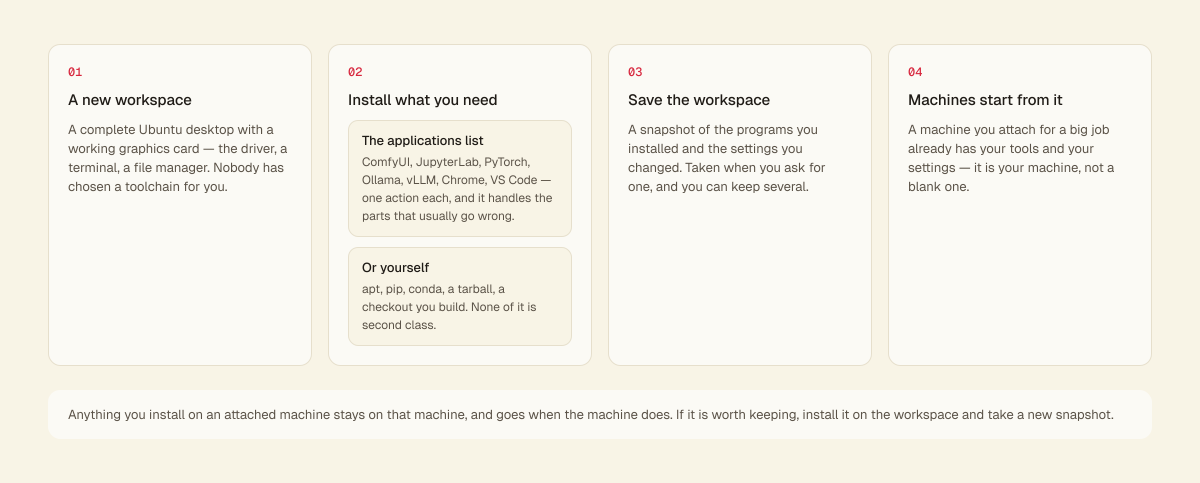
A new machine is a complete Ubuntu desktop with a working graphics card: the driver, the desktop itself, a terminal, a file manager, and everything the card needs to be used by anything you install. A new workspace is the same, on a small slice of a card, and it is where you install what your machines should start with.
3 min read · prices are today’s
On this page4 sections
Nobody has chosen a toolchain for you. The applications are yours to pick.
Installing things
Two ways, and both are ordinary.
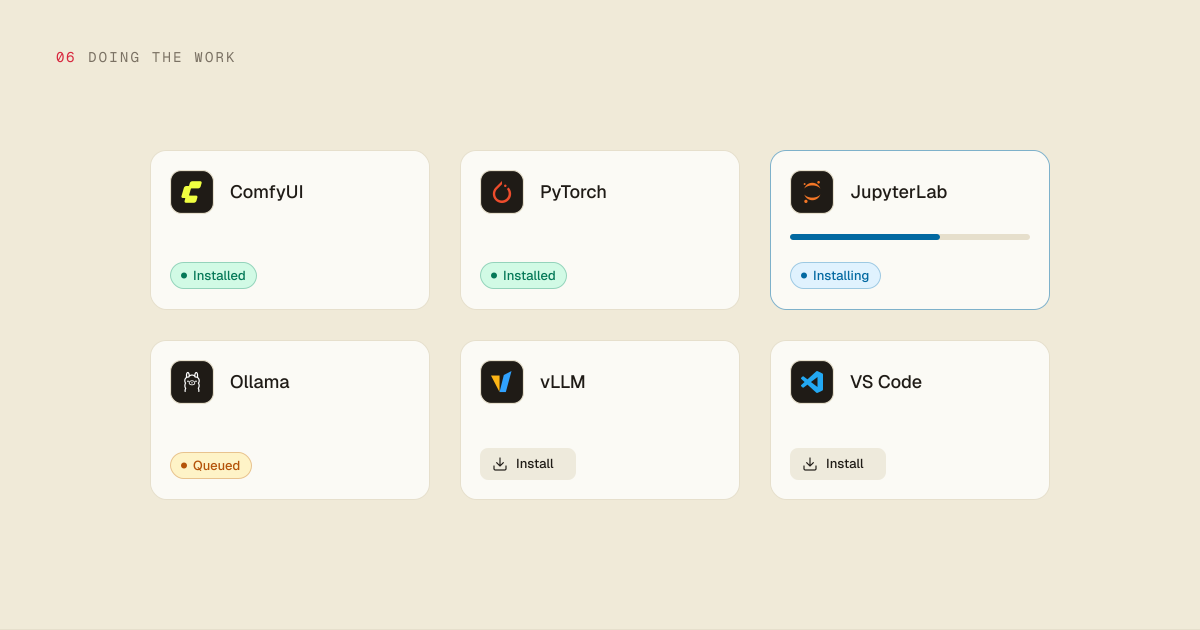
The applications list. Hinode keeps a catalog of the things people usually want — ComfyUI, JupyterLab, PyTorch, Ollama, vLLM, LangChain, the AI Toolkit, Axolotl, Chrome, VS Code — and installs any of them for you. It is a window on the desktop, and the hinode-apps command over SSH, on the workspace or a machine. One action, and it handles the parts that usually go wrong: a build that runs on the graphics cards machines carry, the environment around it, a way to start it.
Some of them are large. Anything that brings PyTorch with it pulls gigabytes and takes a while, so each application says how much it downloads before you install it.
Everything else, yourself. It is your computer. apt, pip, conda, a tarball from somewhere, a git checkout you build — all of it works, and none of it is second class. Nothing about Hinode expects you to stay inside a list.

ComfyUI
Installing · 64%

PyTorch
~3 GB

JupyterLab
~50 MB

AI Toolkit
~8 GB


+ 6 more in the catalog
2 apps are not in a snapshot yet
- v4torch 2.5 and the new LoRA nodes
Installing from Hinode
Set up in your workspace. Render on a machine.
You install applications from the catalog on the workspace and save them there. A machine starts from what you saved and does the rendering. To install, press Install on an application's card on the workspace screen in the Hinode app, run hinode apps install comfyui in a terminal, or ask your assistant. What an application needs comes with it: install ComfyUI and PyTorch installs first, and ComfyUI's card counts PyTorch in what it downloads. Install another while one is running and it waits its turn. It takes a few minutes, and you can keep working meanwhile.
When it finishes, save a snapshot. A machine starts from the newest snapshot, so an application you installed after the last save is on the workspace and not on the next machine. The workspace screen and hinode apps both list what is not in a snapshot yet.
Then attach a machine and open ComfyUI from that machine's Connect menu.
Carrying it to other machines
What you install on the workspace is what your machines start from. You capture it as a snapshot when you want one, and new machines start from the newest, so a machine you add for a big job already has your tools and your settings. Give each snapshot a line saying what changed — "torch 2.5 and the new LoRA nodes" — when you save it or any time after, and the list of versions reads as a history rather than as a column of numbers.
So install there what every machine should have — a Python environment, the applications you use, your settings — and run the heavy work on a machine, since the workspace has only a small slice of a card.
Anything you install on a machine stays on that machine, and goes when the machine does. If it is worth keeping, install it on the workspace and take a new snapshot.
Where to put big files
Models, datasets and output belong in the shared folder, which the workspace and every machine in it see and which no machine deletion touches. Environments, checkouts and anything made of many small files belong in your home folder, where they are fast.
