Docs / Ways inAll pages
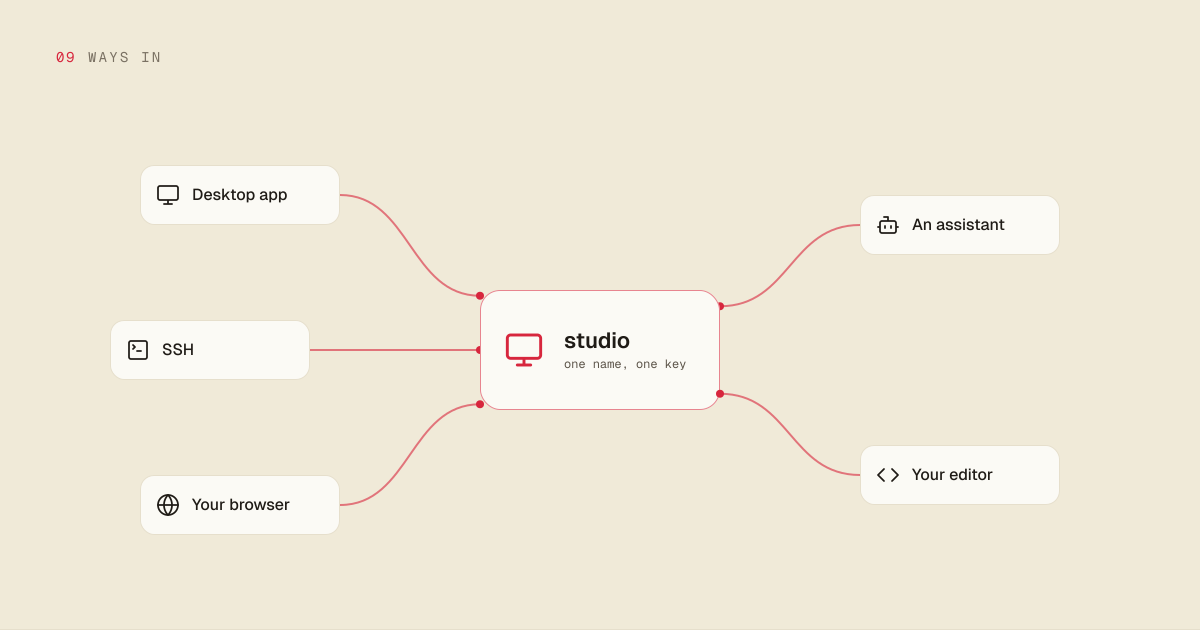
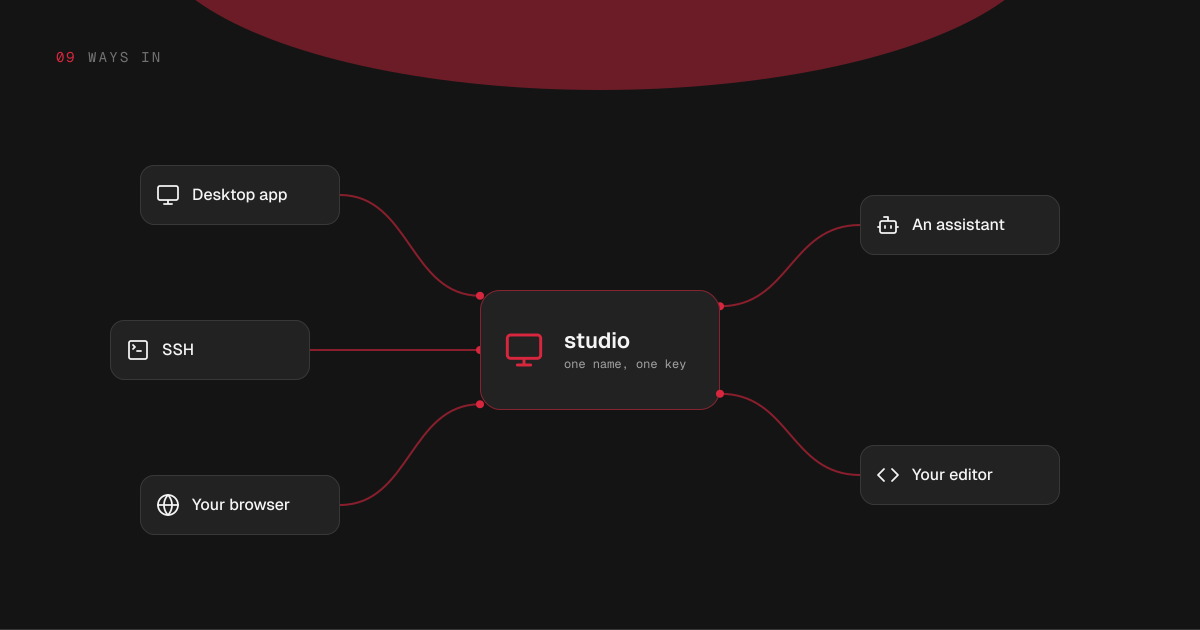
09 · Ways in
Reaching your machine
Five ways in, and you will use more than one.
4 min read · prices are today’s
On this page5 sections
The desktop
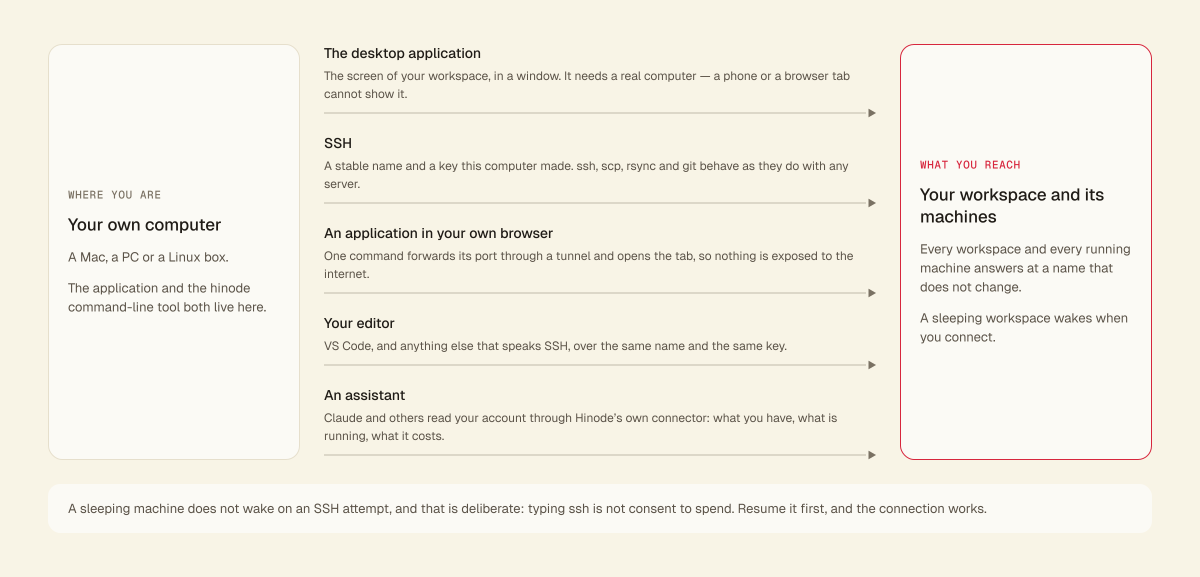
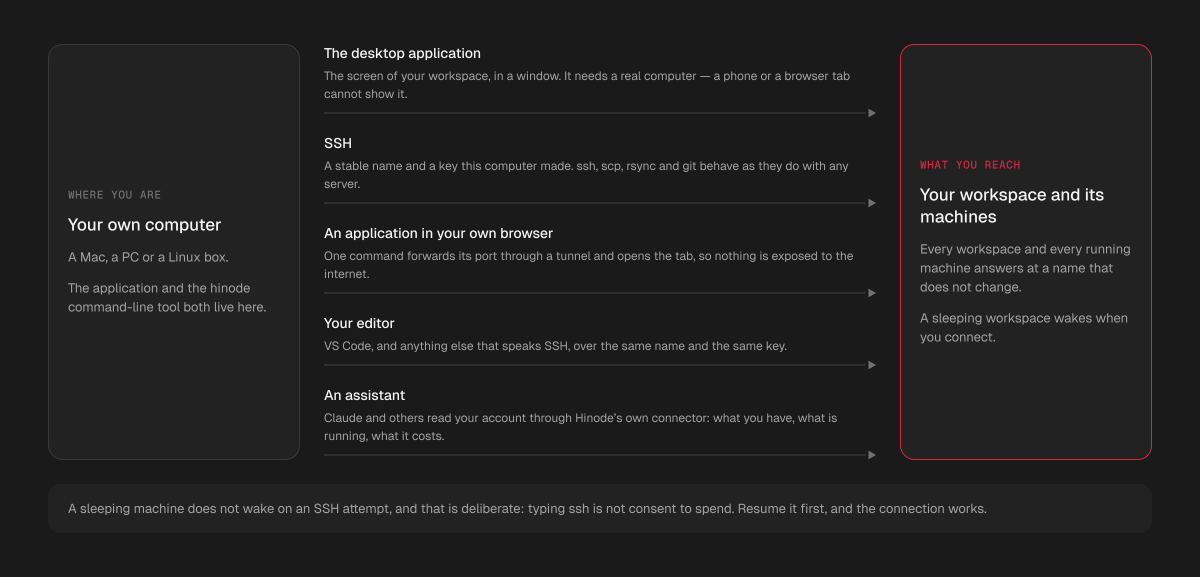
Install the Hinode application on your Mac, Windows PC or Linux computer, sign in, and press Connect on the workspace or on a machine. Its desktop appears in a window: a full Ubuntu session with that computer's graphics card behind it.
Or skip the install: sign in at hinode.run in Chrome or Edge on a computer and press Connect there, and the same desktop opens in a tab. Safari and Firefox cannot play the stream yet.
The workspace's desktop runs on a small slice of a graphics card, which is plenty for files, a browser and an editor. For work that needs a whole card, connect to a machine.
It needs a real computer with a keyboard and a mouse. A phone or a tablet cannot show the stream, in the app or in a browser. Everything else — seeing what is running, what it costs, pausing — works from anywhere.
Claude · connected to Hinode
Train the portrait LoRA overnight on a 48 GB card, and pause it when it is done.
hinode_submit_job
train-48 attached · job j-7f2 running
Done. train-48 (48 GB VRAM, 64 GB RAM, $3.96/hr) is running python train_lora.py from your v4 snapshot. It pauses itself 15 minutes after the job ends, and you will get an email with the result.
SSH
Every workspace and every running machine answers at a stable name, so ssh, scp, rsync and git work the way they do with any server. Install the hinode command-line tool, sign in once and run its setup: it makes a key for this computer, registers it with your account, and writes the configuration, so connecting is ssh yourworkspace with nothing to paste.
The application installs that tool for you, so signing in once in the app is usually all it takes.
A paused workspace starts when you connect over SSH, and the connection waits for it. A paused machine does not, and that is deliberate: a large machine costs real money an hour, and typing ssh is not consent to spend it. Resume it first, and the connection works.
An application in your own browser
Some applications have a web interface, and you may want it beside your other tabs rather than inside a streamed window. hinode open <application> runs it on one of your machines: it starts the application if it is not running, forwards its port, and opens the tab on your own computer. The machine has to be running, so resume a paused one first. The tab works for as long as the command runs.
This needs the desktop application or the command-line tool: the connection is a tunnel, so the port is never opened to the internet.
An editor
Visual Studio Code and anything else that speaks SSH connects straight to a workspace or a machine over the same name and the same key. You edit files where they live. Open a project on the workspace to work on it, and on a machine to run it on a graphics card.
An assistant
Claude and other assistants reach your account through Hinode's own connector. They read what you have, what is running and what it costs, and they do what you would do yourself: make a workspace, attach a machine, run a job on it, pause and resume it, delete it, set your budget.
In a browser. Claude lists Hinode in its connector directory: find it in the connectors list in Claude, or open claude.ai/directory/hinode, add it and sign in. Nothing to paste. Anything else that takes a connector by address — ChatGPT among them — wants one address: https://mcp.hinode.run. Add it and sign in when it asks. If it offers you a choice of OAuth client, take the one that registers itself automatically — Hinode hands every assistant the same client, so there is nothing for you to fill in. Both this address and the configuration below are on your own Settings screen, under Connect an assistant, with a button that copies them.
On your own computer. Claude Desktop, Claude Code, Codex — anything that loads a server of its own — runs the hinode command instead:
{ "mcpServers": { "hinode": { "command": "hinode", "args": ["mcp"] } } }Nothing to paste and no second sign-in: it works as you, on the sign-in hinode login already left on the machine. Use this rather than the address above when the assistant runs on your own computer — that sign-in comes back through a browser, and an assistant on your machine has nowhere for it to land.
An assistant on your own computer also works on the machines themselves: it runs a command and tells you what came back, reads and writes files, and reads what a job has printed. It uses the key on this computer, so it reaches what you reach.
A connector in a browser does none of that — there is no way in from our side. Ask it to run a job instead.
A connected assistant appears in your Settings under Active devices, beside your own computers, and revoking it there signs it out.
An assistant here spends real money, and it acts as you: it can start whatever you could start, and it is refused whatever you would be refused. Anything that starts a machine comes back with the price, and deleting one takes the machine's name typed again.
